

How to Renew a Bot
All LifeBots bots require periodic renewal. This can be done using the LifeBots Web UI (User Interface) at https://lifebots.cloud.
Bot Renewal
To renew a bot:
- Visit your LifeBots Dashboard at https://lifebots.cloud/dashboard
- Click on the bot you wish to renew
- This will open a Manage Bot panel for the bot and display an Expiry Date
- Click on the Renew Bot pane
- This will open a Renew Your Bot panel
- Select your Payment Method, either “Pay In-World” or “LifeBots Wallet”
- Your wallet must have sufficent funds to use the Wallet payment method
How to use the LifeBots Wallet payment method
The quickest and easiest way to renew your bot is with the LifeBots Wallet payment method. In order to use this payment method you must have previously funded your wallet at a LifeBots terminal.
Your LifeBots Wallet must contain a sufficient balance to cover your renewal cost.
If your LifeBots Wallet is sufficiently funded:
- Click on the “LifeBots Wallet” payment method pane in the “Renew Your Bot” panel
- There will be a checkmark beneath the pane to indicate it is selected
- Click on the Renewal Options dropdown and select the Renewal Period you desire
- Select one of the available renewal periods - 1 week, 2 weeks, 4 weeks, 8 weeks, 12 weeks
- Optionally, enter a Coupon Code if you qualify for one and click “Apply”
- An Order Summary will display details of your selected renewal along with a Total amount
- Click the Renew Now button in the lower right corner to renew your bot and pay the renewal fee
How to use the Pay In-World payment method
If your LifeBots Wallet does not have a sufficient balance to cover your renewal or if you simply prefer to make In-World payments then select the “Pay In-World” payment method.
- Click on the “Pay In-World” payment method in the “Renew Your Bot” panel
- There will be a checkmark beneath the pane to indicate it is selected
- Click on the “Show Payment Instructions” button in the lower right corner
- This will open a Renew Your Bot panel
- Click the “Click to Visit Terminal Location” link in the Terminal Locations pane
- If your browser supports it this will open a tab with a Teleport button
- Click the “Teleport” button in the Second Life Slurl window
- This will open a Places window in your Second Life viewer
- Click the “Teleport” button at the bottom of the Places window in your Second Life viewer
- This will teleport you to the LifeBots office where the payment terminals are
- Locate a Terminal, they are to either side of the help desk
- LifeBots terminals look like this:
-
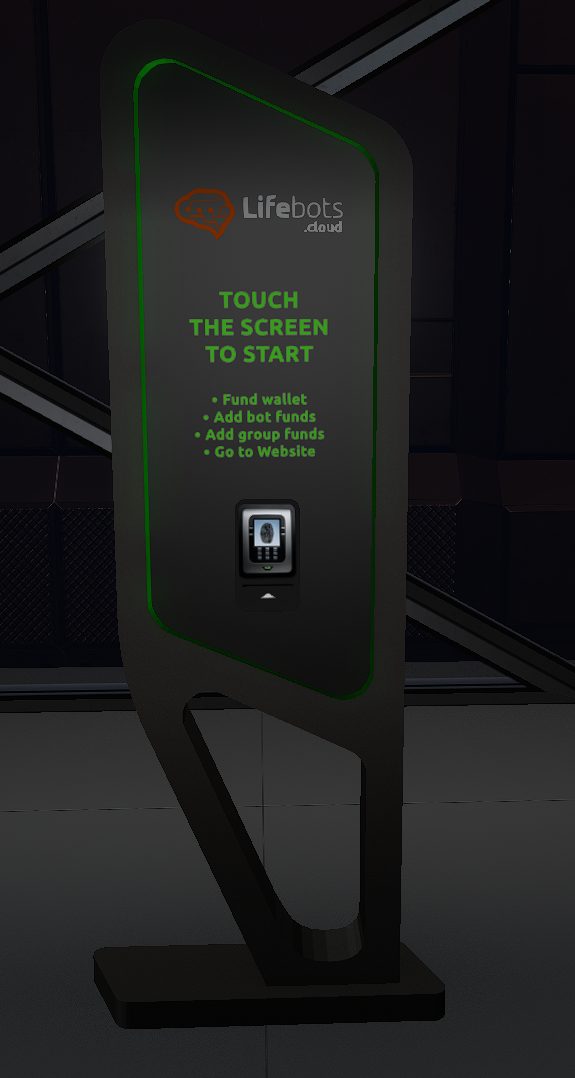
- Click on a Terminal that is not already in use
- This will identify you and display a Menu of choices
- Click the “Bots” menu button
- This will bring up a dialog menu with your bots listed numerically
- Click on the number of the bot you wish to renew
- This will bring up a dialog with instructions and an OK button
- Click the OK button
- Right click the terminal and select Pay
- Click the button with the amount you wish to pay to renew
To renew using the In-World payment method you do not necessarily need to use the Web UI. Instead you can directly teleport to a LifeBots payment terminal if you already know the Slurl or have previously saved a Landmark to the terminal. For example, you could teleport directly to http://maps.secondlife.com/secondlife/Goa/18/45/3599 and use the terminal there, skipping the steps above to get to the Click to Visit Terminal Location link in the Web UI. However, terminal locations may change over time and your landmark may no longer work. Using the Web UI to locate a terminal will always send you to the right location.
Renewal Tip
LifeBots frequently offers significant discounts on renewals through coupons. Before renewing visit https://lifebots.cloud and click on “Coupons” at the top of the page to see if you qualify for any coupons. If so, when renewing add the Coupon Code to the renewal form and click “Apply”.
How to Add Funds to a LifeBots Wallet
To add funds to your LifeBots Wallet:
- Visit a Terminal
- Find and visit any LifeBots payment terminal in Second Life
- Access the Menu
- Click the terminal to access the payment menu
- Select “Add Funds”
- Click on the “Add Funds” option from the menu
- Complete Payment
- Pay the terminal the amount you wish to add to your wallet